
Look: if Rendering is eating 40-50% of your frame on the Main Thread, you are one content drop away from a hitch storm.
And the ugly part is not even the GPU. It's the CPU sitting there with idle cores while one thread tries to render the damn game.
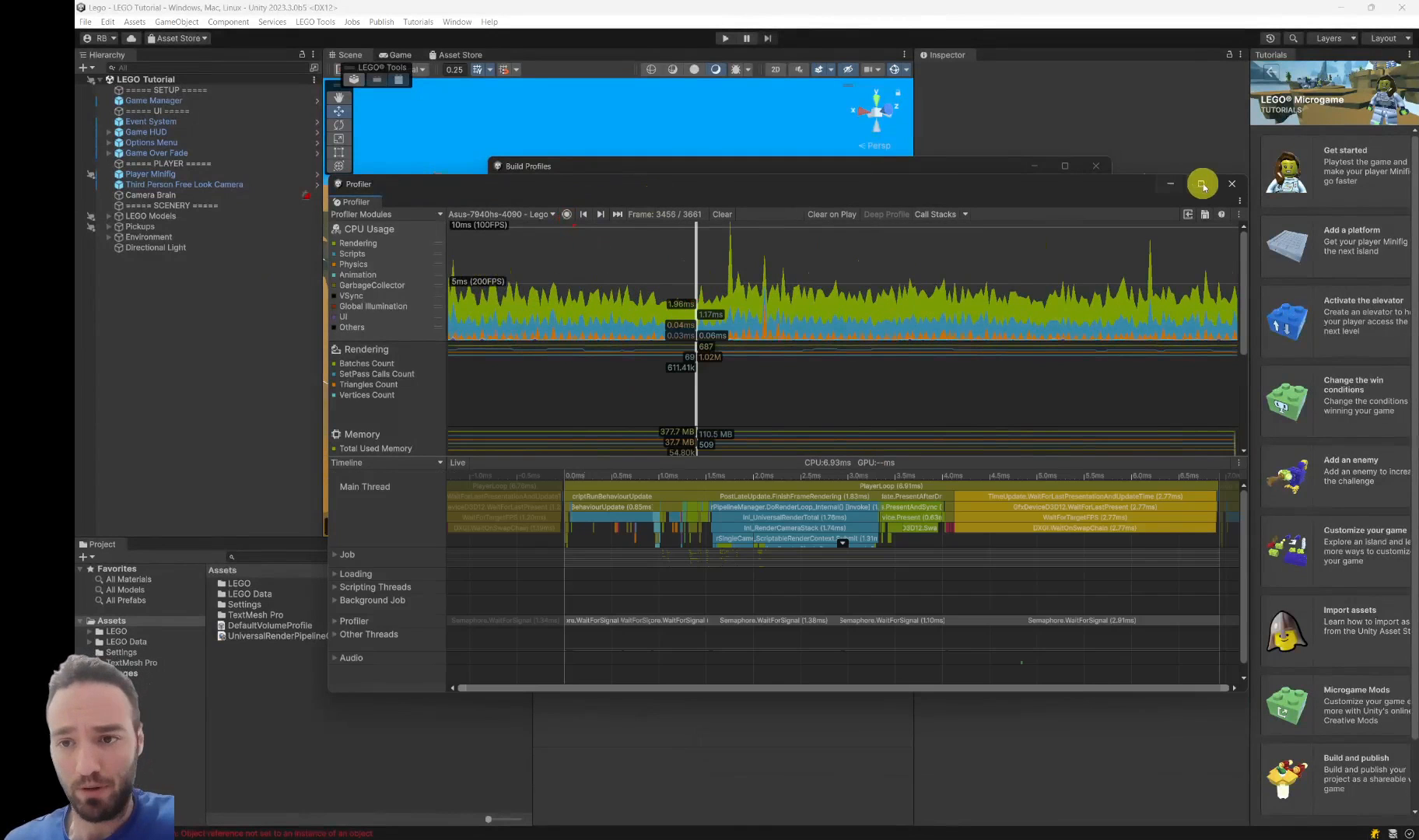
First check: open the Profiler (Timeline), jump to Rendering, and ask the question that matters: are your worker threads helping, or are they just idle while Main Thread runs Shadows, Opaques, Transparents, post, the whole thing?
If they're idle, that's not a "Unity mystery". That's your current render mode.
Second check: if you want a more deterministic capture (less noise), you can force Direct mode in a Development build with -force-gfx-direct. Don't ship it. Use it to make the problem obvious.
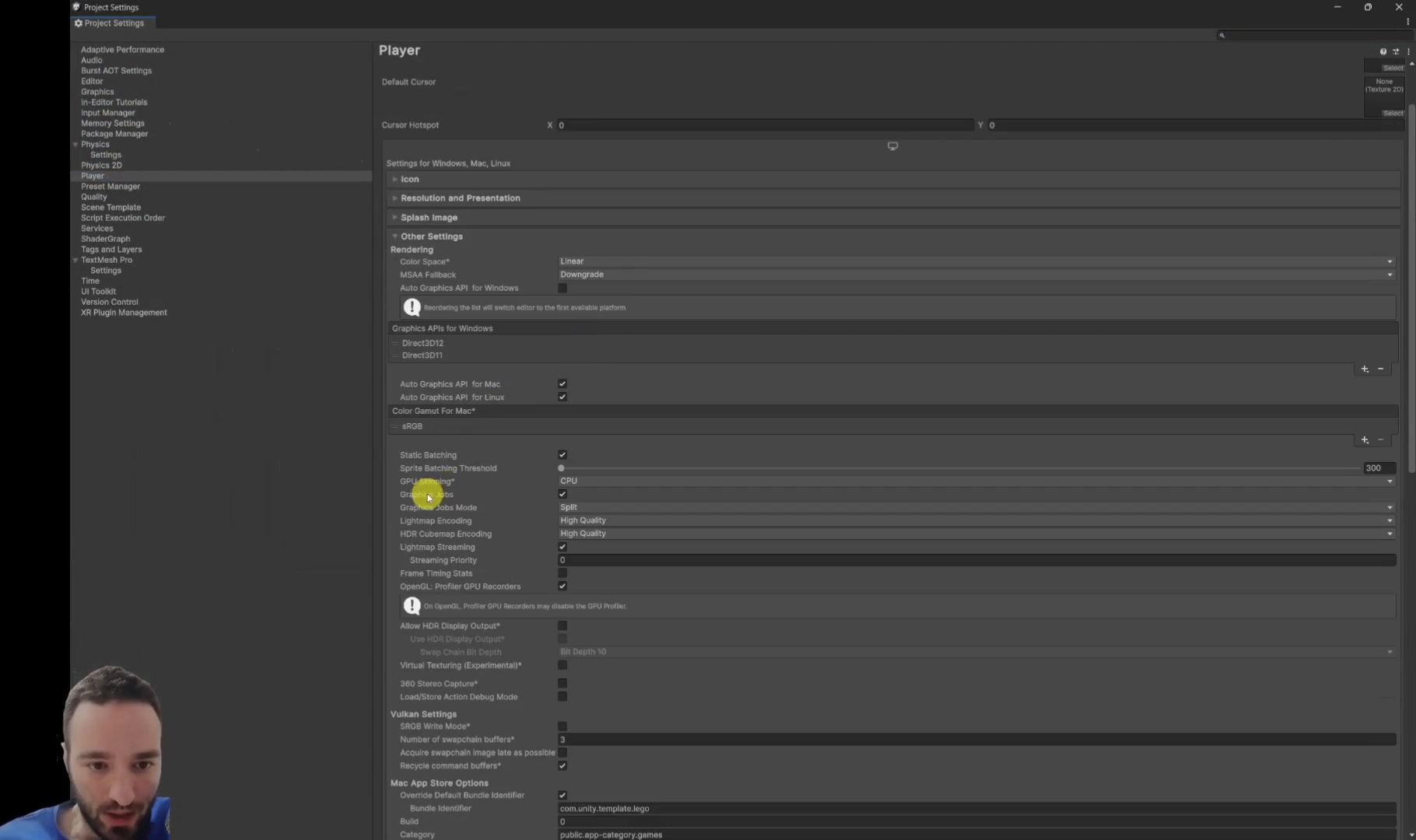
Now the fix (when your target supports it): go to Player Settings and enable Graphics Jobs. Start with Native. If you can run on modern APIs (he calls out DirectX 12, Metal, Vulkan, and console targets), try Split too.
Then verify Unity actually did it: open the Player log, search for the Gfx thread / jobs lines, and confirm the threading mode you think you're running is the one Unity picked.
CEO/Producer translation: this is how you buy back CPU time for gameplay and content without deleting features. Less waiting. Less firefighting.
This page is a tiny preview. The complete step-by-step module (full video + mindmap + the real mode-by-mode decision rules) is below for members.
In this module:
- 1. Teasing YOU with Render Modes
- 2. Rendering Modes - WTH?
- 3. Your Actual Render Modes
- 4. Benchmarks & Results
Join to unlock the full module, audio, and resources.